

How to Plot Points on a Coordinate Plane
Create a four-quadrant coordinate graph, plot four points, show their labels and coordinates, and customize their appearance using Vexplot Graph Editor.
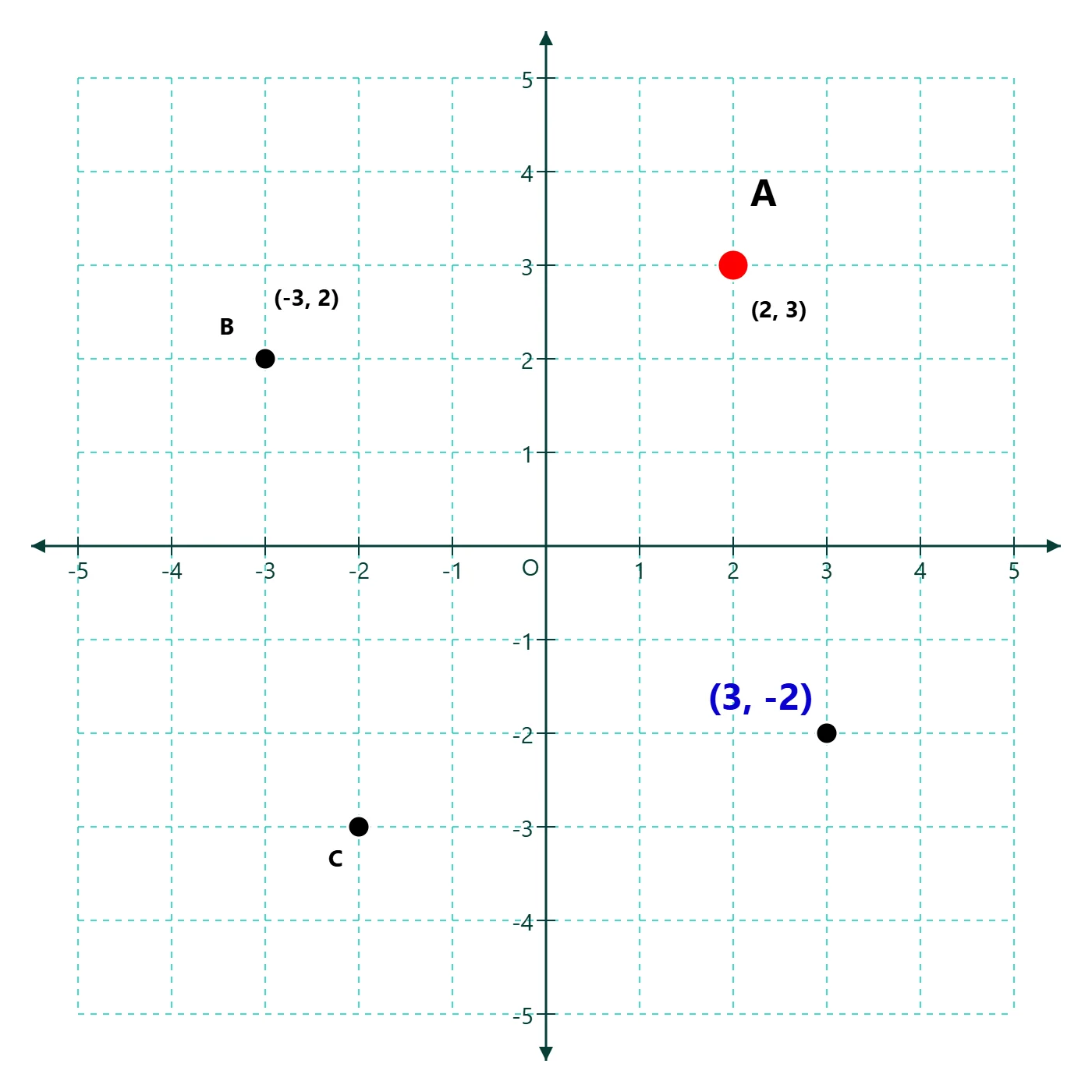
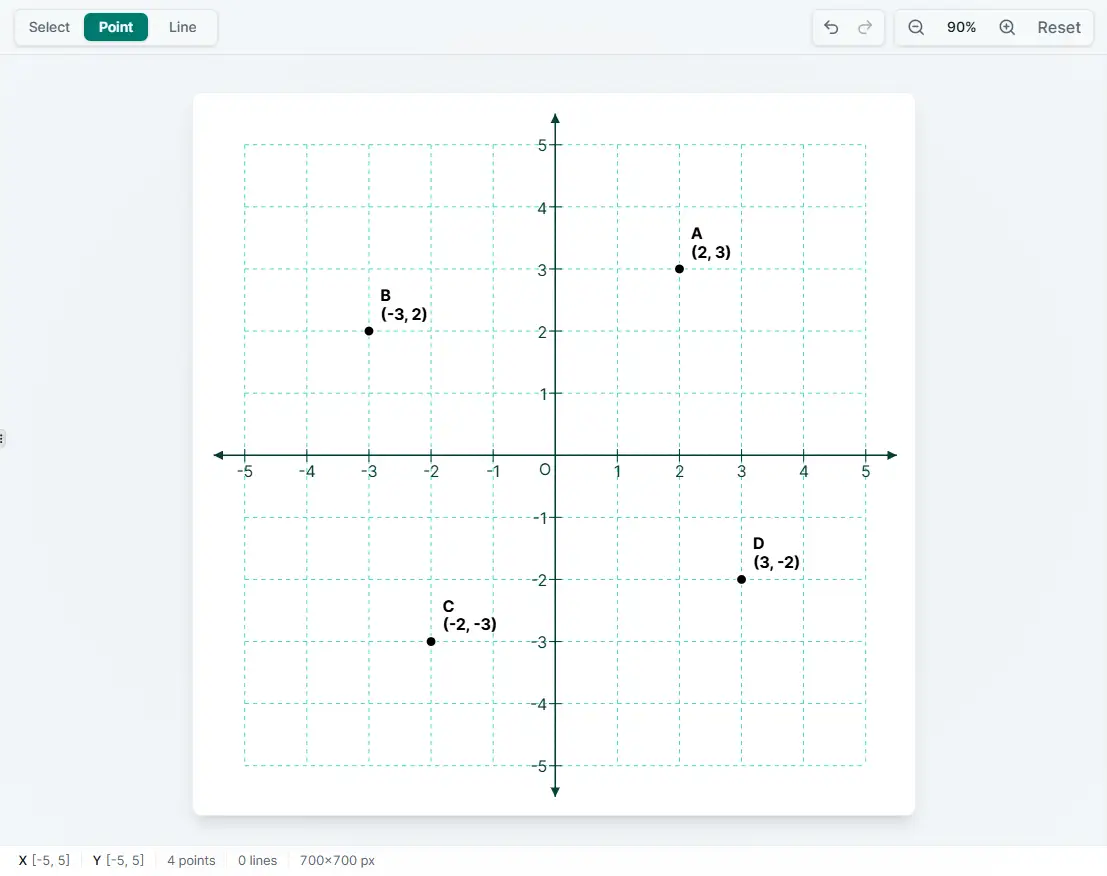
What you'll create
Start with a blank graph
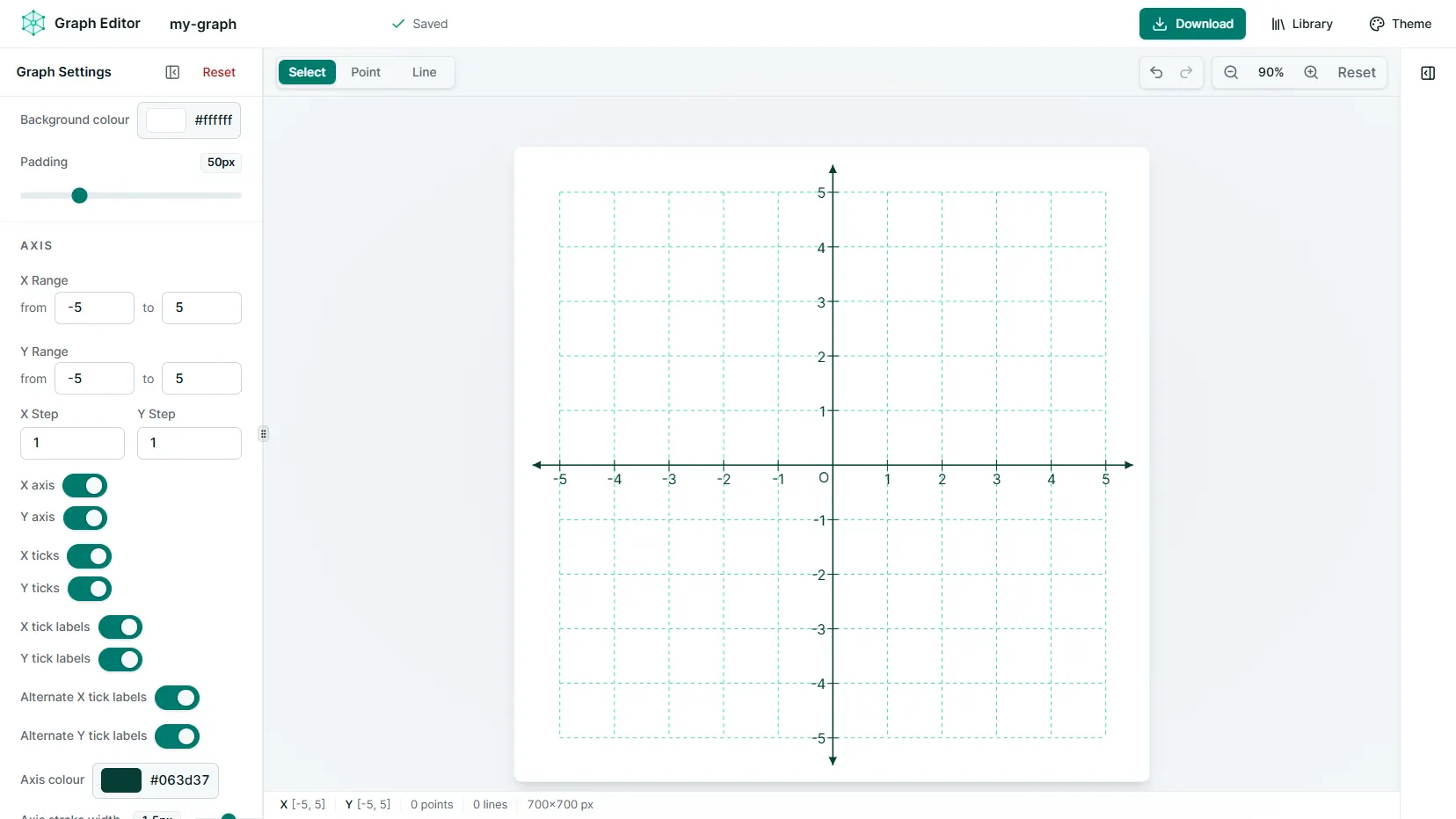
Open a new Graph Editor document. The initial canvas shows a positive X and Y range, so it needs a quick adjustment before you can place points in all four quadrants.
Set the X and Y axis ranges
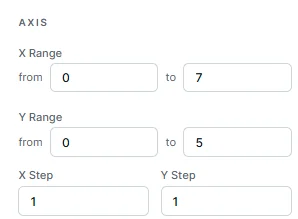
- In the left sidebar, set both the X Range and Y Range from -5 to 5. The range determines which coordinates are visible.
- Leave both X Step and Y Step set to 1. This places a tick and grid position at every whole number.
- For example, changing a step to 2 would space its ticks two units apart, such as -4, -2, 0, 2, and 4.
Adjust the grid spacing
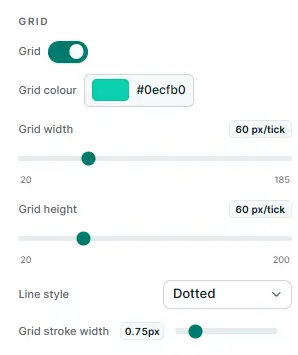
- In the left sidebar, Grid width controls the horizontal distance between X-axis ticks.
- Grid height controls the vertical distance between Y-axis ticks.
- These are optional visual adjustments. They make the graph more spacious or compact, but do not change its coordinates.
Check the four-quadrant graph
- After changing the settings in the left sidebar, check that the canvas shows both negative and positive values on the X and Y axes.
- The origin (0, 0) should sit near the center where the axes cross.
- Right and left determine positive and negative X; up and down determine positive and negative Y.
Switch to Point mode
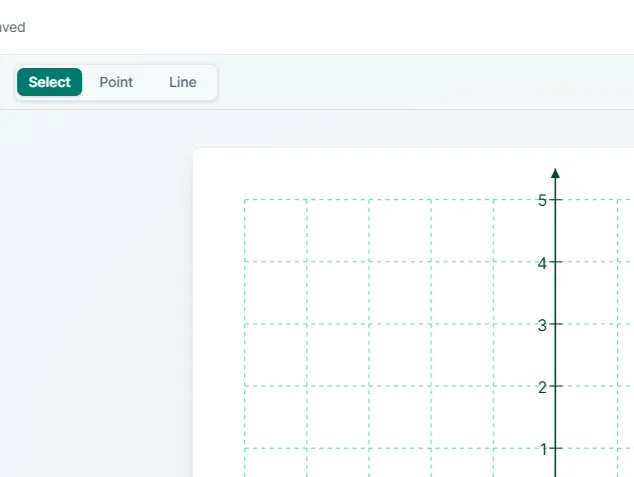
Select Point mode before clicking grid intersections. Points snap to the configured grid and tick positions, making exact coordinates easy to place.
Plot the four points
Click the grid intersections for these coordinates. Together, they place one example point in each quadrant.
Style a point
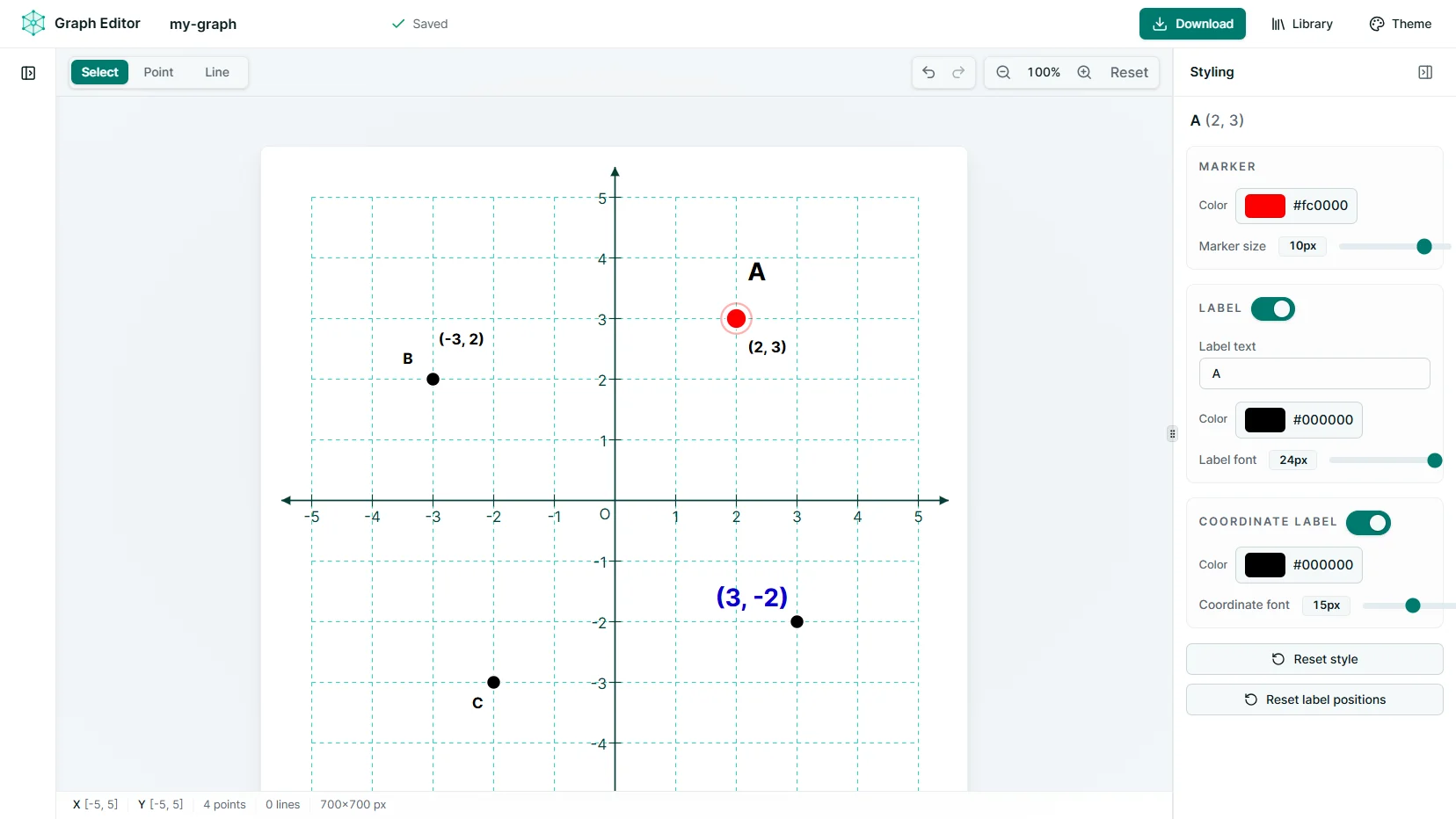
Switch back to Select mode and choose a point. The styling inspector changes its marker, labels, and coordinate display without affecting its position.
Styling controls
- Marker color and size
- Point label, color, and font size
- Coordinate label visibility, color, and font size
Drag labels to reposition
Export the finished graph
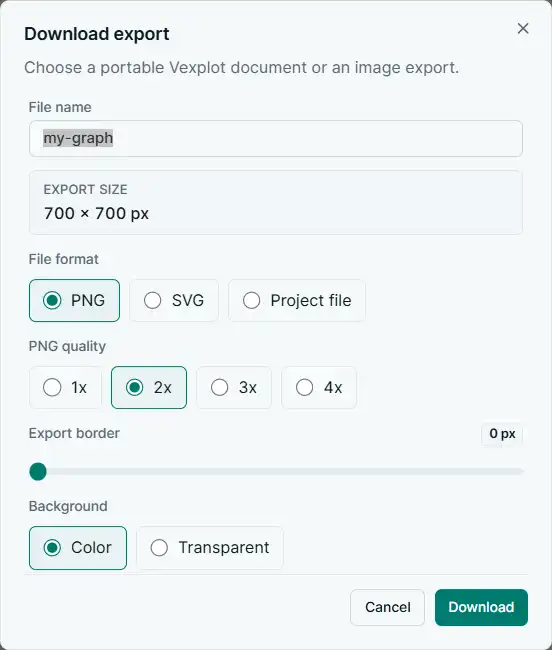
Open Download when the graph is ready, then choose the image format and output settings that suit where you plan to use it.
Choose the final output
- PNG quality: Choose 1×, 2×, 3×, or 4× output. A higher setting creates an image with more pixels for larger or sharper use.
- Background: SVG and PNG exports can keep the graph's background colour or use a transparent background.
- PNG export border: Add extra space around the PNG in pixels so the graph does not sit directly against the image edge.