

How to Draw Lines on a Coordinate Plane
Draw a segment by connecting two points that are already on the graph, or click two grid intersections and let Graph Editor create any missing endpoint points automatically.
Need help plotting points first? See the plotting points tutorial.
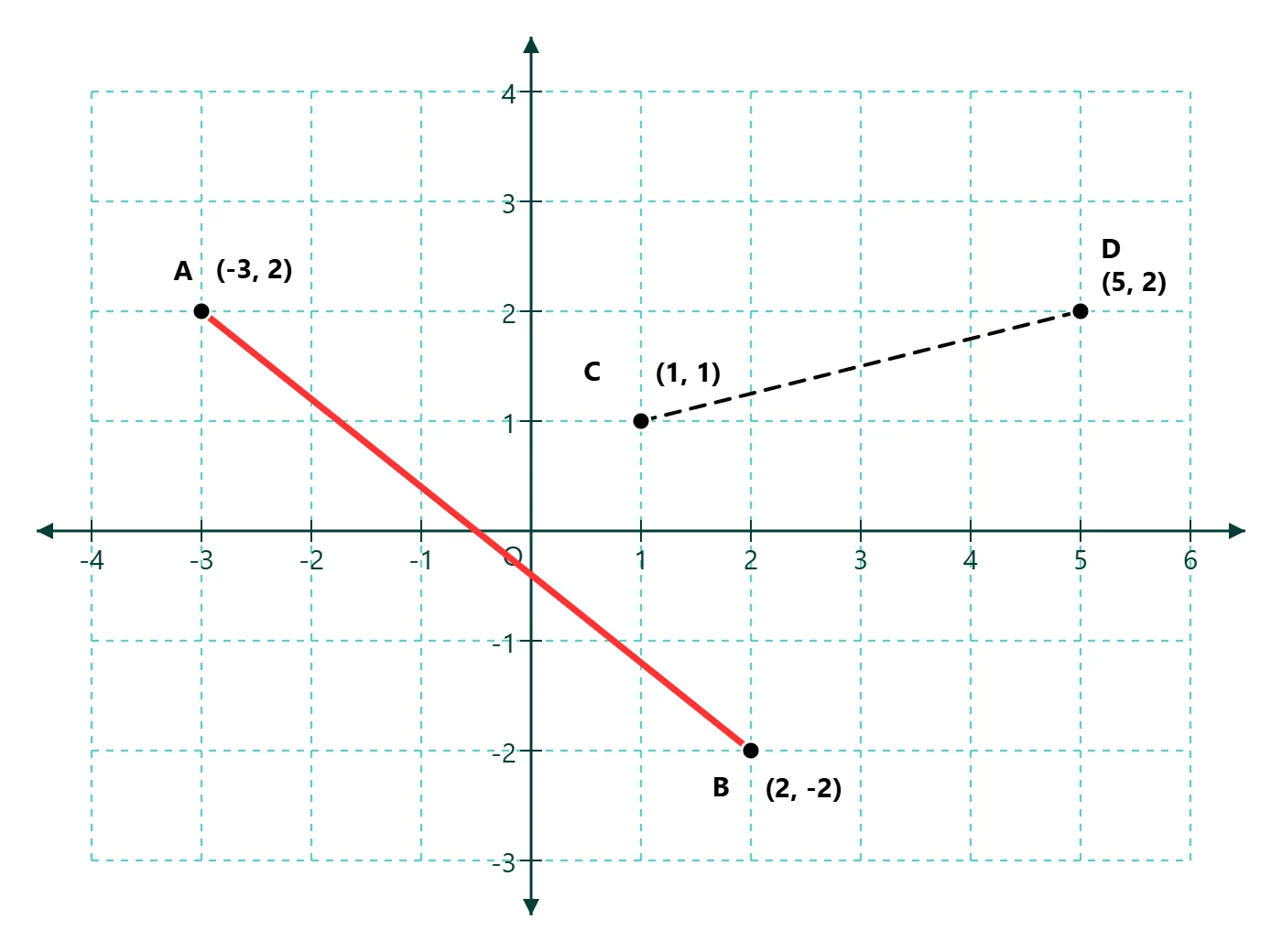
What you'll create
Start with two existing points
This example begins with a prepared coordinate plane and two plotted points: A at (-3, 2) and B at (2, -2). There is no need to change the axes or grid before continuing.
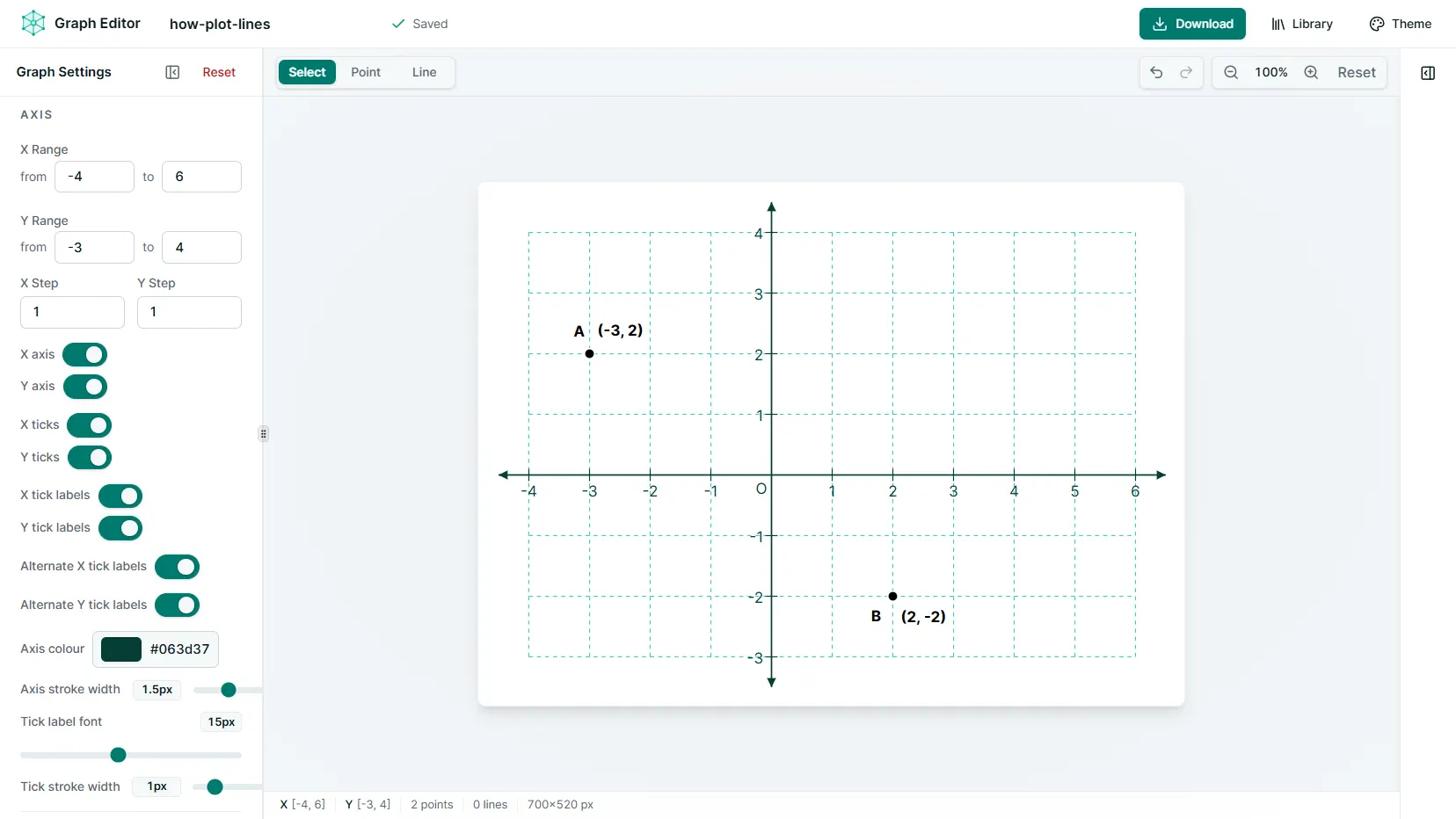
Switch to Line mode
Choose Line from the Select / Point / Line control. Line mode waits for two endpoints, then creates a segment between them.
Choose two endpoints
Either method works
Connect the existing points
Click point A, then point B. Graph Editor creates the segment and reuses both points instead of placing duplicates.
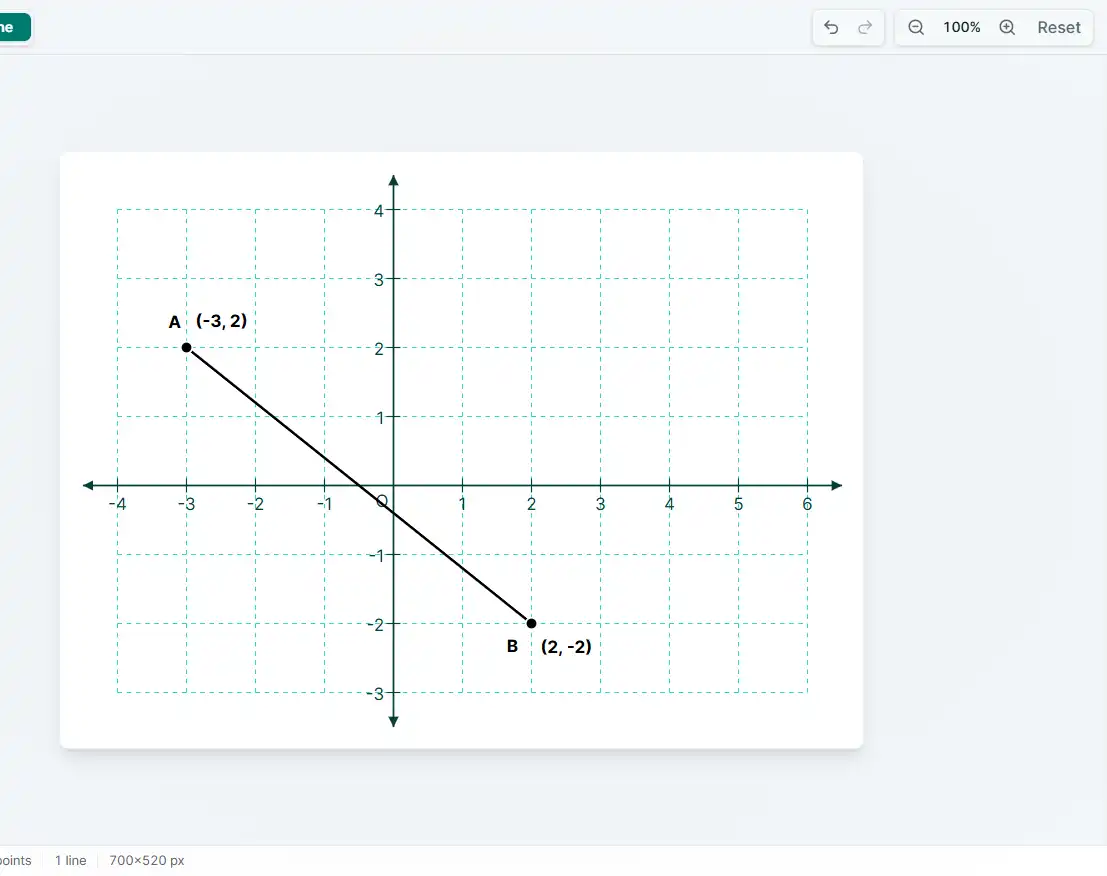
- Click the first existing point.
- Click the second existing point.
- The existing endpoints are reused.
- A → B and B → A are the same segment, so selecting the points in reverse does not create a duplicate.
Choose a new first endpoint
You can also draw a line without plotting its endpoint points beforehand. Keep Line mode active and click an empty grid intersection to set the first endpoint.
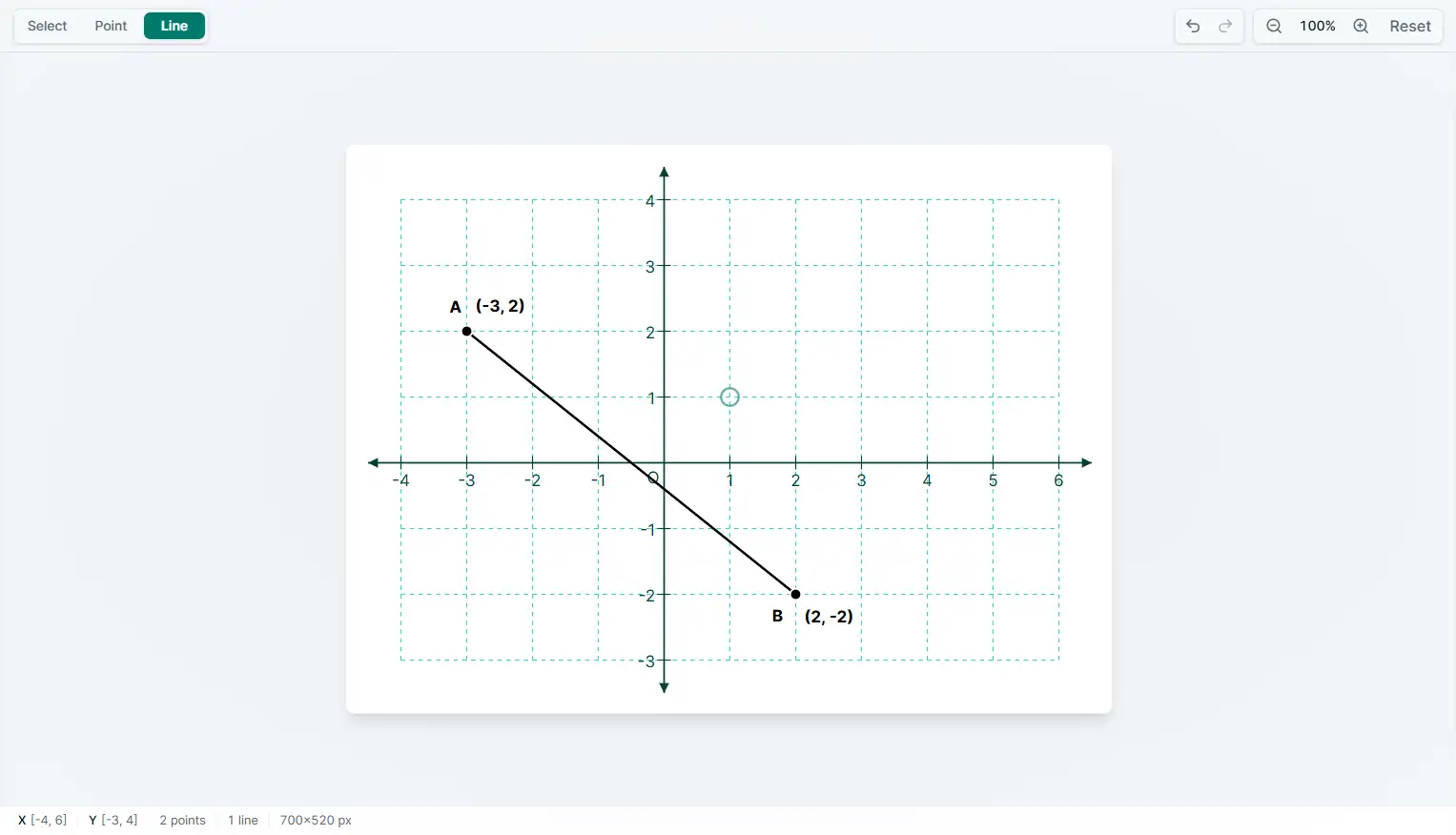
The pending endpoint shows where the segment will begin. The selected coordinate snaps to the configured X and Y grid step, just like a point placed in Point mode.
Complete the direct line
Click a second empty grid intersection. Graph Editor completes the segment and automatically creates endpoint points at both chosen positions.
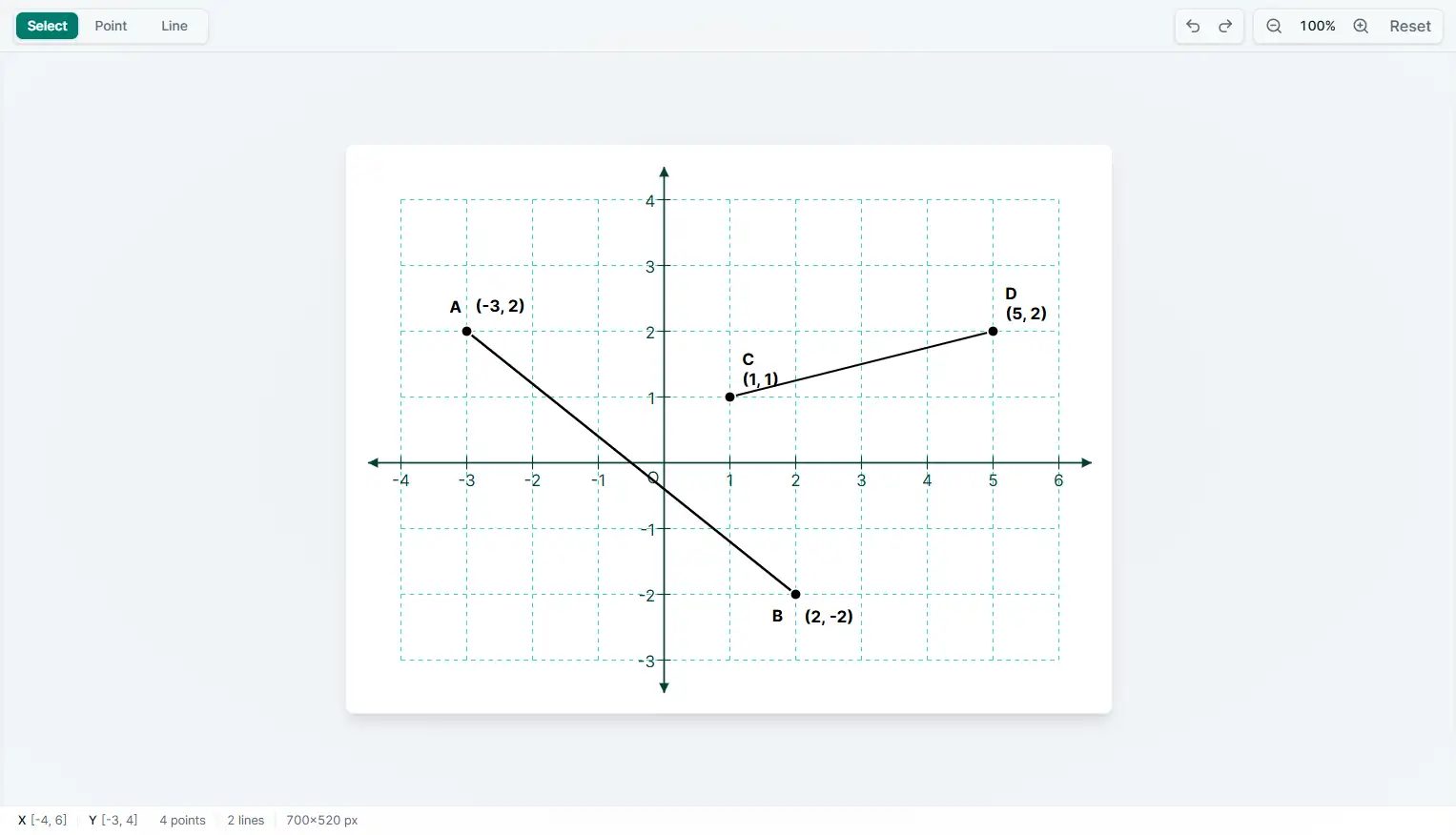
Select and style a line
Return to Select mode and click a segment to open its inspector. You can also return here later whenever an existing line needs editing.
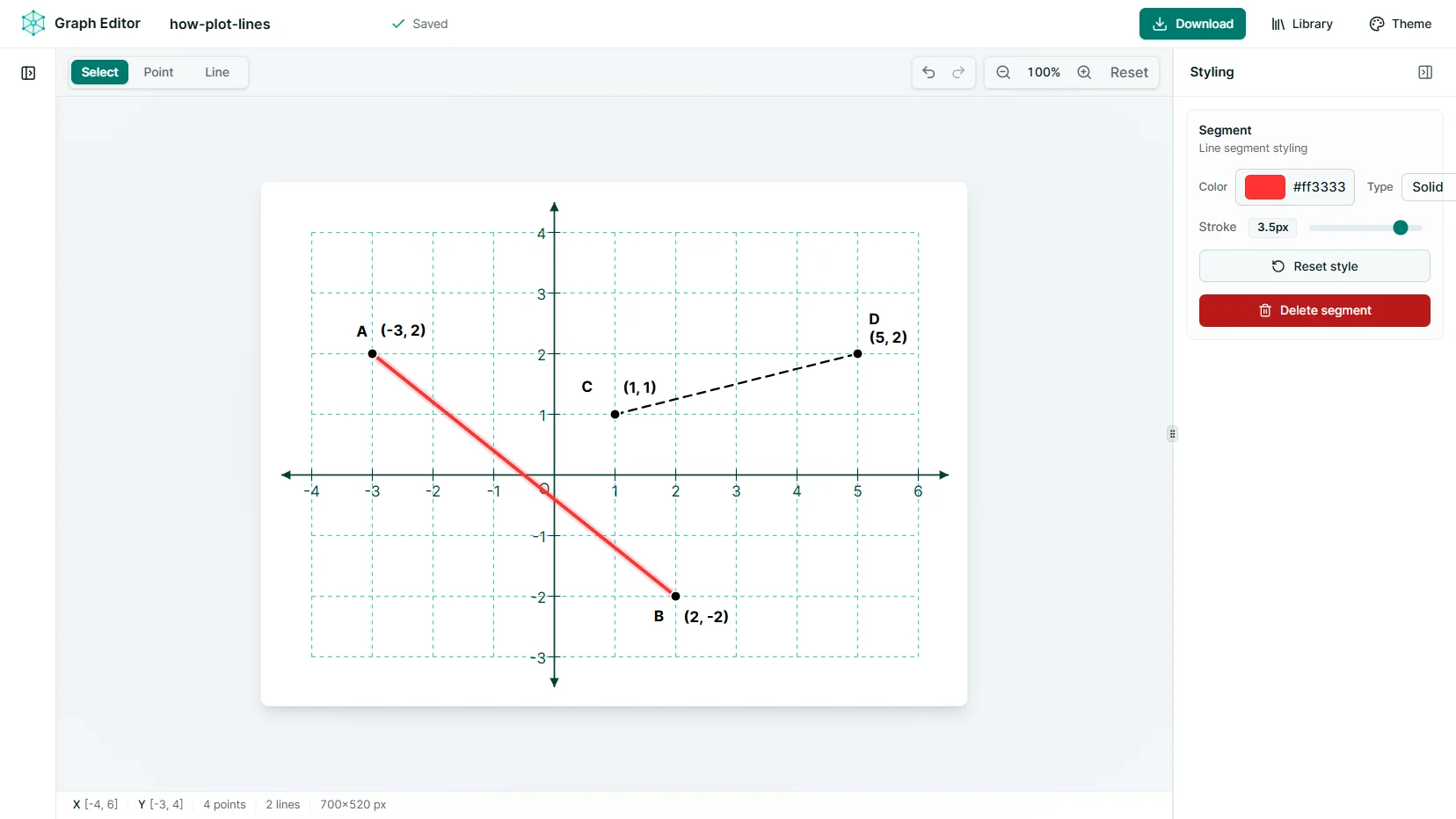
Line styling controls
- Choose a line color.
- Use a solid, dashed, or dotted style.
- Adjust the stroke width.
Every styling change updates the graph immediately.
Export the finished graph
Open Download when the graph is ready, choose the format that fits your next task, and save the result.
PNG
A ready-to-use image for worksheets, documents, slides, and online content. Choose 1× to 4× quality, a border, and a color or transparent background.
SVG
A scalable vector image that stays sharp at any size and can be edited in compatible design software.
Project file
A portable .vexplot file for reopening the editable graph in Graph Editor later.